Build Your Own GasTag Bridge
Total cost: approximately $25 in parts
Parts List
| Part | Price | Notes |
|---|---|---|
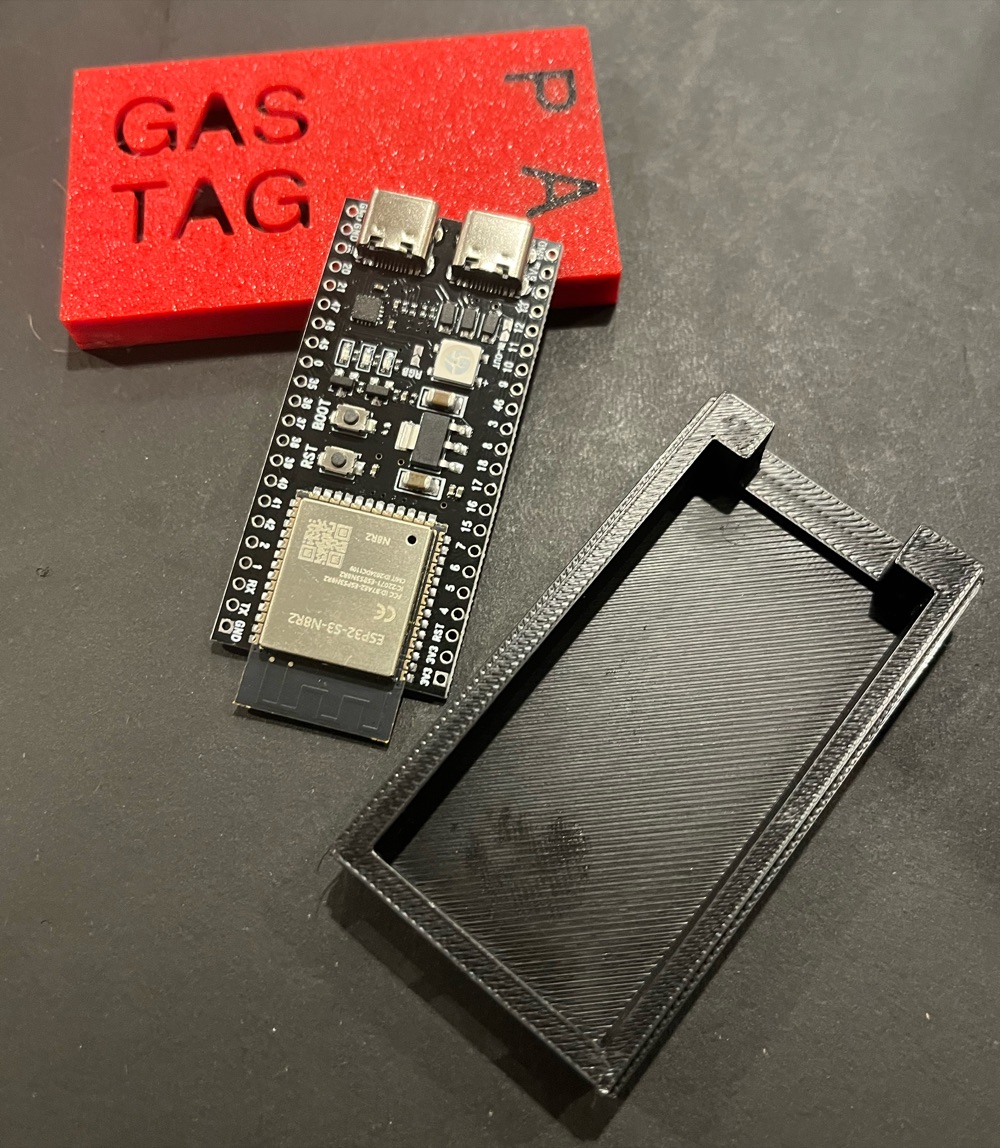
| YD-ESP32-S3 (N8R2 or N16R8) | ~$10 | 2-pack available |
| USB-C to USB-A OTG adapter | ~$5 | JSAUX 2-pack |
| USB-A to USB-B cable | ~$5 | The one included with your Analyzer works great |
| USB-C to USB-C cable | ~$8 | For powering ESP32 from iPhone |
| 3D Printed Case (optional) | Free | STL File |
How to identify the correct ESP32 board: Look for dual USB-C ports.
Build Steps
Install PlatformIO
Install VS Code from code.visualstudio.com, then install the PlatformIO extension from the VS Code marketplace. This provides the toolchain needed to compile and upload the firmware.
Flash the Firmware
Clone the GasTag firmware repository. Open the ESP32Firmware folder in VS Code. Connect the ESP32 to your computer via the UART USB-C port (not the OTG port). Click the PlatformIO Upload button or run: pio run -t upload. Once the initial firmware is flashed, the GasTag iOS app can keep the firmware updated via OTA updates.
Connect the Hardware
Connect your setup: iPhone → USB-C cable → ESP32 UART port (for power). ESP32 OTG port → USB-C to USB-A adapter → USB-A to USB-B cable → DiveSoft Analyzer USB port.
Test the Connection
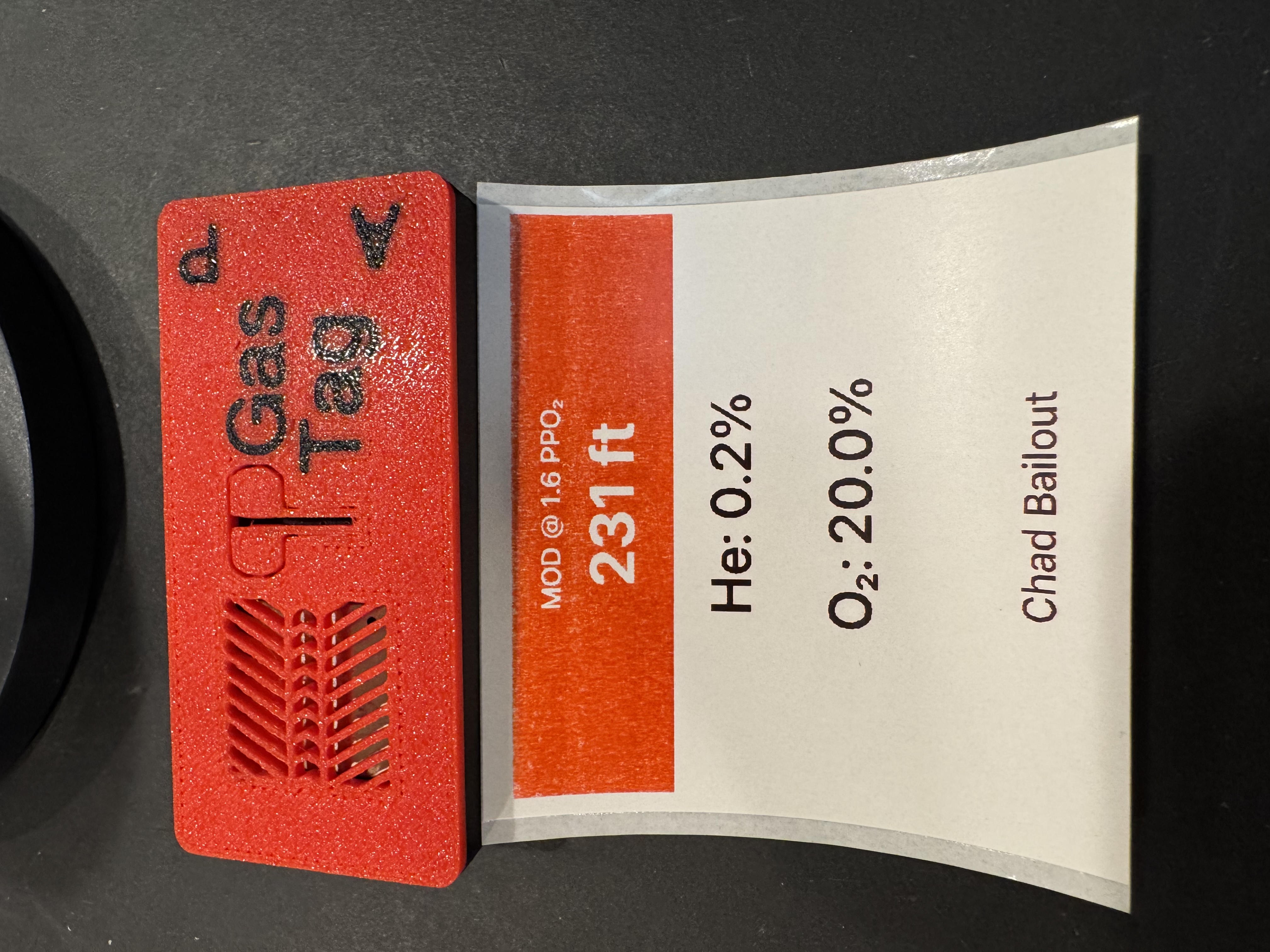
Install the nRF Connect app on your phone. Scan for BLE devices and verify you see "GasTag Bridge" advertising. Once verified, download the GasTag app from the App Store to use the full interface.
Keep firmware updated
From time to time the GasTag bridge firmware may need to be updated. You can do this manually as before or via the iOS app via OTA firmware updates.
Connection Diagram
┌─────────────────┐      USB-B       ┌─────────────────┐       BLE        ┌─────────────────┐
│  DiveSoft       │ ──────────────►  │   ESP32-S3      │  ~~~~~~~~~~~~►   │    iPhone       │
│  Analyzer H2/O2 │    Serial Data   │   GasTag Bridge │   Notifications  │   GasTag App    │
└─────────────────┘                  └─────────────────┘                  └─────────────────┘
                                            ▲
                                            │  USB-C Power
                                            │  (from iPhone)
                                            │
Troubleshooting
Upload fails
Use the UART USB-C port, not the OTG port
Crashes on boot
Ensure USB CDC On Boot is disabled in Arduino IDE settings
BLE not advertising
Check serial monitor (115200 baud) for error messages
Can't find device on iPhone
Ensure ESP32 is powered and Bluetooth is enabled on iPhone